What's new
Keep up with new features, bug fixes, and news that empowers you in using slashpage!
Monthly update
What's new
Improvements & fixes
All
Monthly update
What's new
Improvements & fixes
All

What's new
Show which image is currently being viewed.

Check the current position in the image slider using the indicator. To enable it, click ••• > Indicator > Use in the top right corner of the image slider.
Choose your view type: One by one vs Multiple
The one by one option has been newly added to the image slider view type.
One by one view type

One by one view type is useful when you want visitors to focus on one image at a time, such as for a portfolio or product showcase. Only one image is displayed at a time, and the size of the slider changes to match the size of each image.
The one-by-one view type is ideal when you want visitors to focus on a single image at a time, such as in a portfolio or product showcase. Only one image is displayed, and the slider’s height adjusts to match each image.
Multiple view type
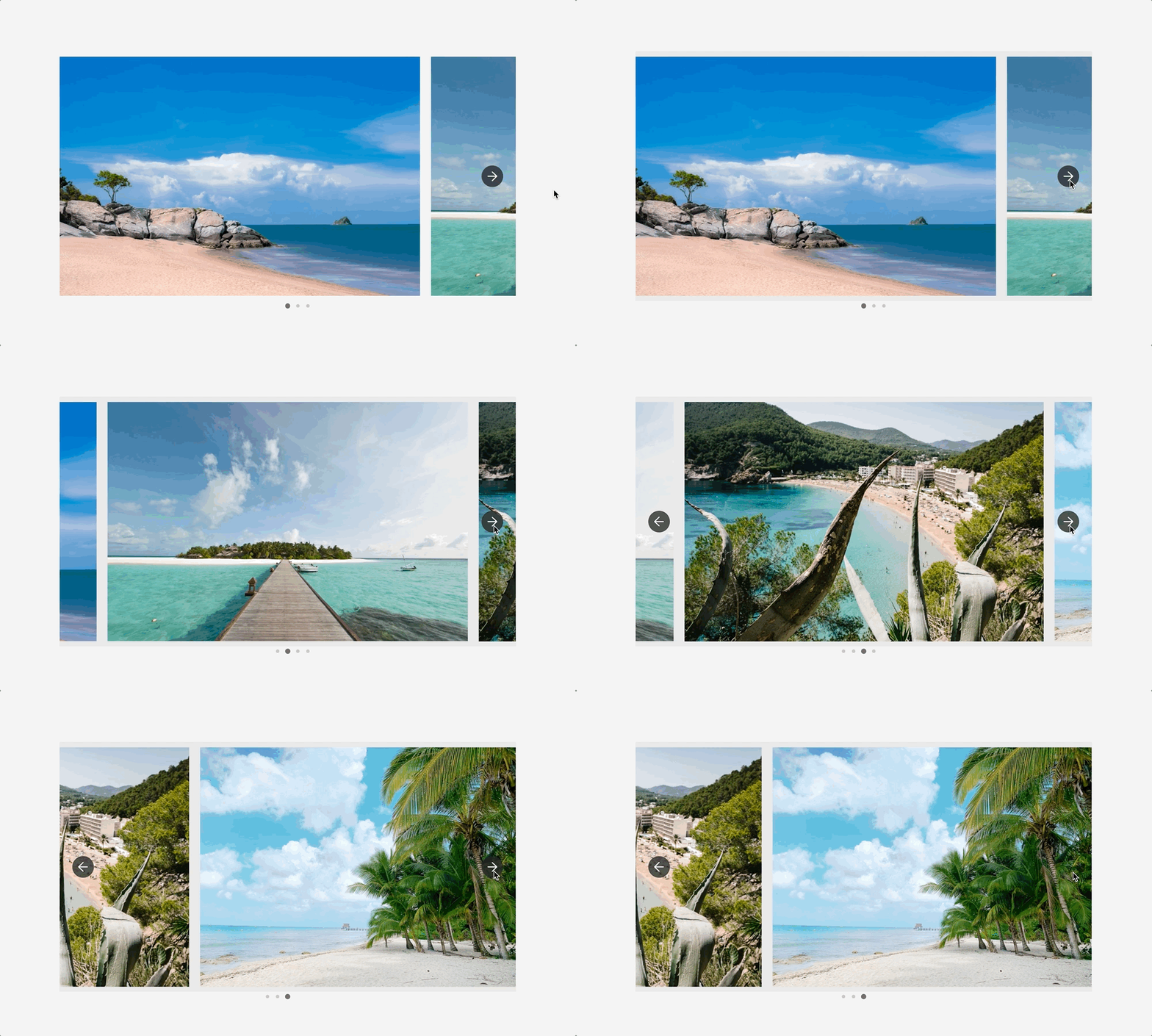
The multiple view type is useful for displaying several images in sequence, making it ideal for site banners or showing the stages of a project.
Adjust the space between images as desired.
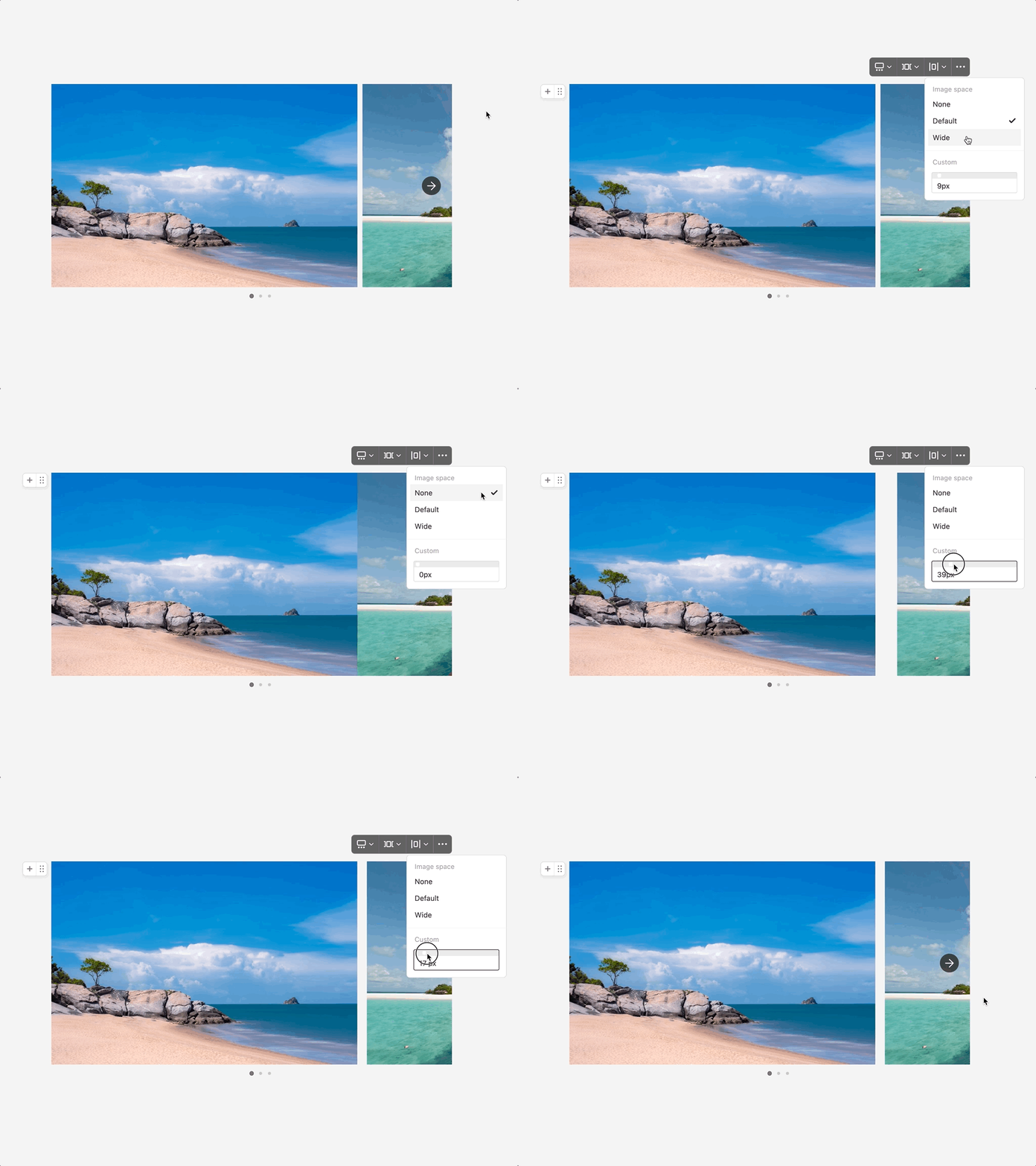
Select from options like None, Default, and Wide, or use the custom slider below to adjust the image spacing in pixels.

Image spacing adjustments are only available in the multiple view type.
Improvements (4)
Bug Fixes (9)
Improvements (4)
Bug Fixes (9)
•
Search results for user mentions now appear based on relevance (post author, commenter).
•
When duplicating a channel, posts within the channel are no longer duplicated.
•
New post notifications are no longer sent when you create a post in kanban and list channels.
•
You can now check comments being posted in real time in a chat channel without having to click on the post.
Subscribe to 'slashpage'
Subscribe to my site to be the first to receive notifications and emails about the latest updates, including new posts.
Join Slashpage and subscribe to 'slashpage'!
Join Slashpage and subscribe to 'slashpage'!
Subscribe

2
Made with Slashpage